Switching to Fish Shell on macOS
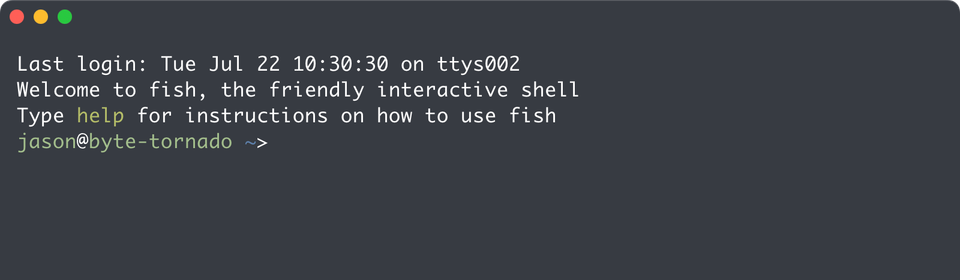
I recently made the switch from ZSH to Fish Shell after hearing Mitchell Hashimoto discuss it on the Fallthrough Podcast regarding Ghostty terminal development.
Why Fish Shell?
Three key features motivated this change:
1. Web-based Configuration Interface
The built-in fish_config command launches a web UI for managing themes,
prompts, and variables, making customization accessible regardless of technical
experience level.
2. Syntax Highlighting Feedback
As users type commands and navigate directories, Fish provides immediate visual feedback, displaying invalid commands in red by default.
3. Private Mode Functionality
This feature prevents command history from being retained during specific sessions, proving valuable for demonstrations and tutorials where reproducibility matters.
Installation Process
Using Homebrew, installation requires:
brew install fishVerification uses:
type fishExpected output: /opt/homebrew/bin/fish
Changing Default Shell
The standard command is:
chsh -s /opt/homebrew/bin/fishHowever, macOS security restrictions typically produce a "non-standard shell" message. To resolve this, add Fish to the allowed shells list:
sudo sh -c 'echo /opt/homebrew/bin/fish >> /etc/shells'Then retry the shell change command.
Recovering from Shell Configuration Errors
If an incorrect path is set, macOS provides a recovery option through System Settings:
- Open Settings
- Search for "Users & Groups"
- Control-click your user photo
- Select "Advanced Settings"
- Modify the Login shell setting back to the default shell
This hidden feature allows terminal access restoration without requiring system-level intervention.